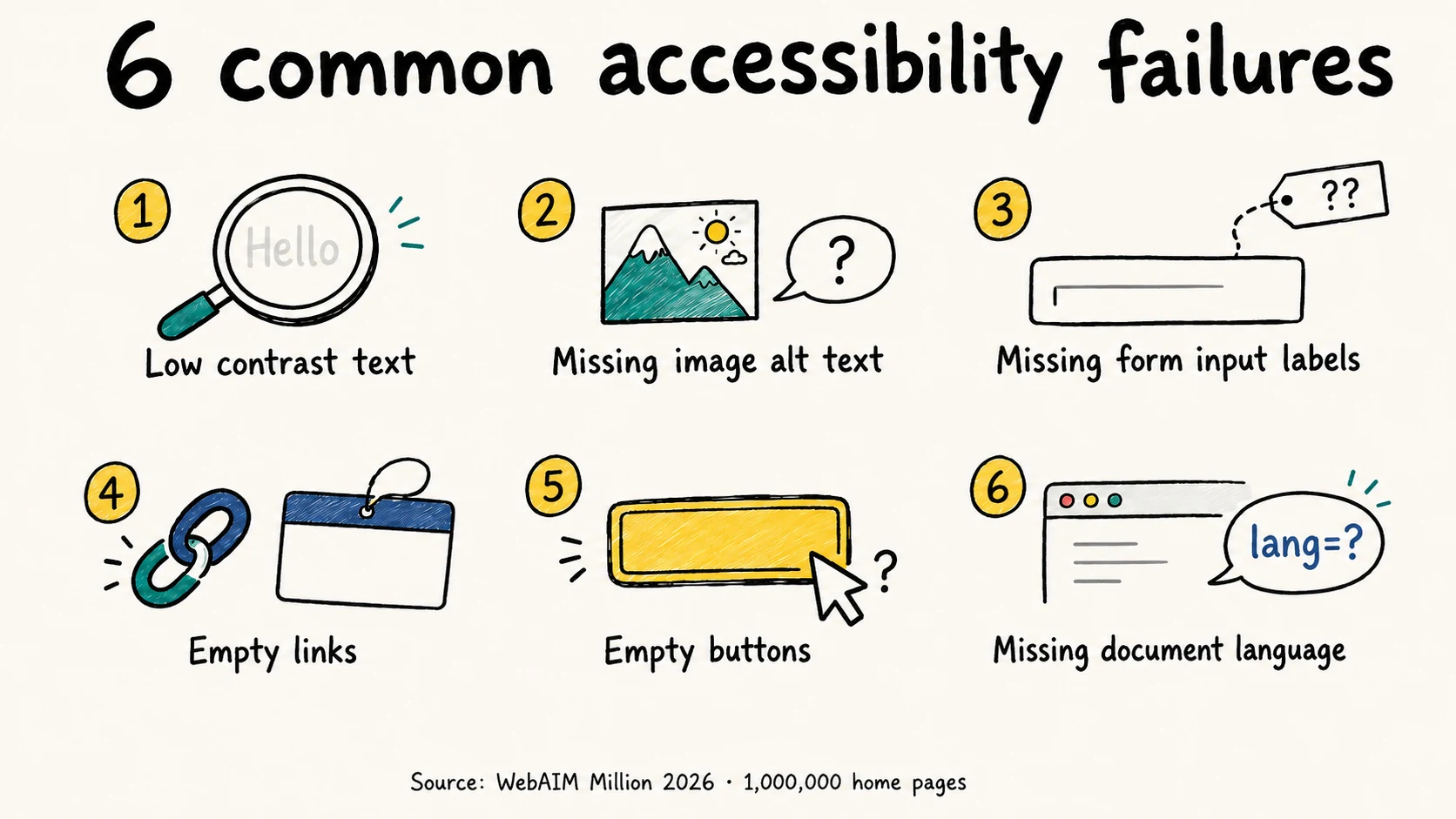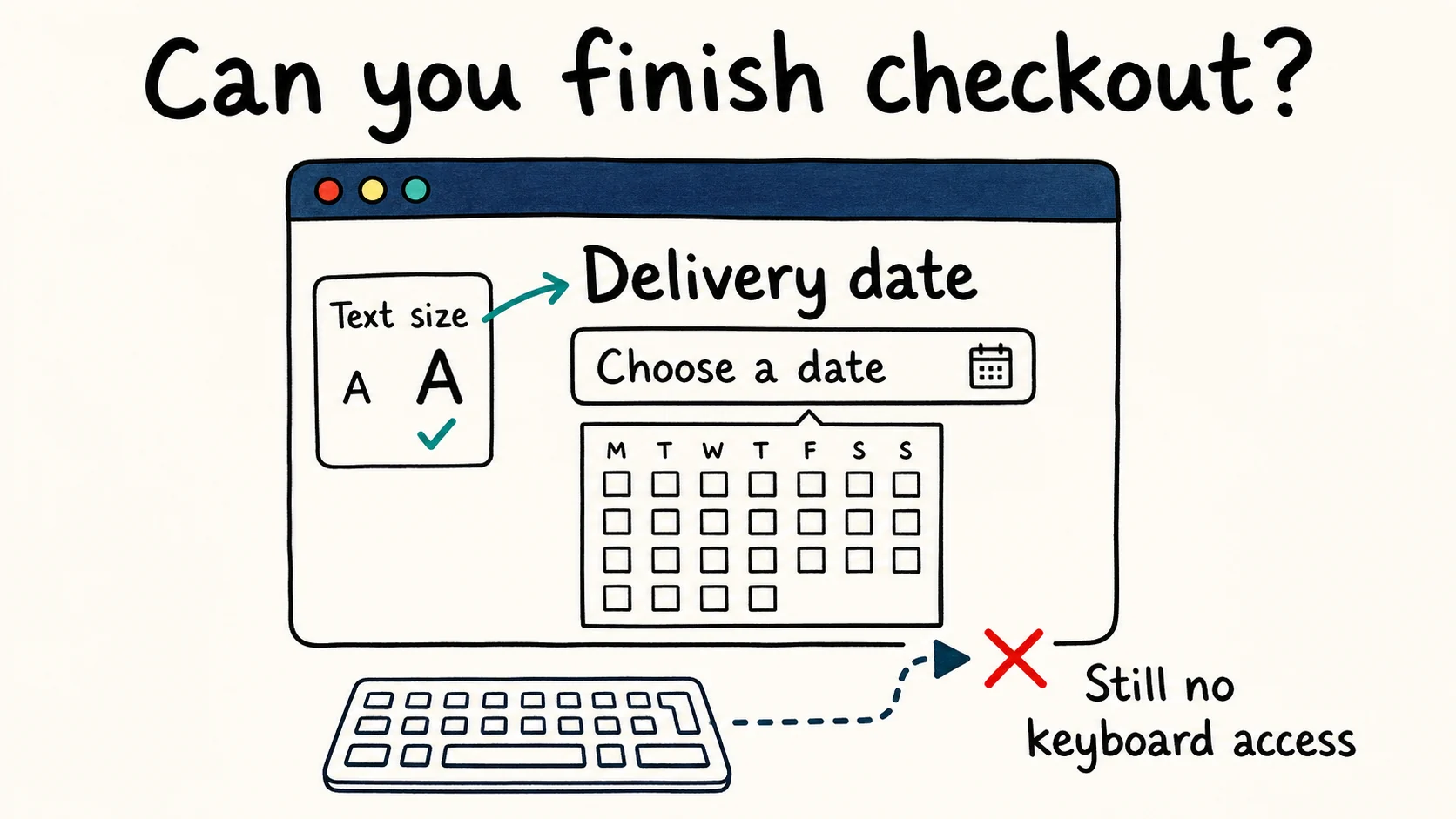
Write alt text around what the image helps a reader understand or do. Describe the relevant information, name the destination of an image link and use an empty alt attribute, alt="", for decoration.
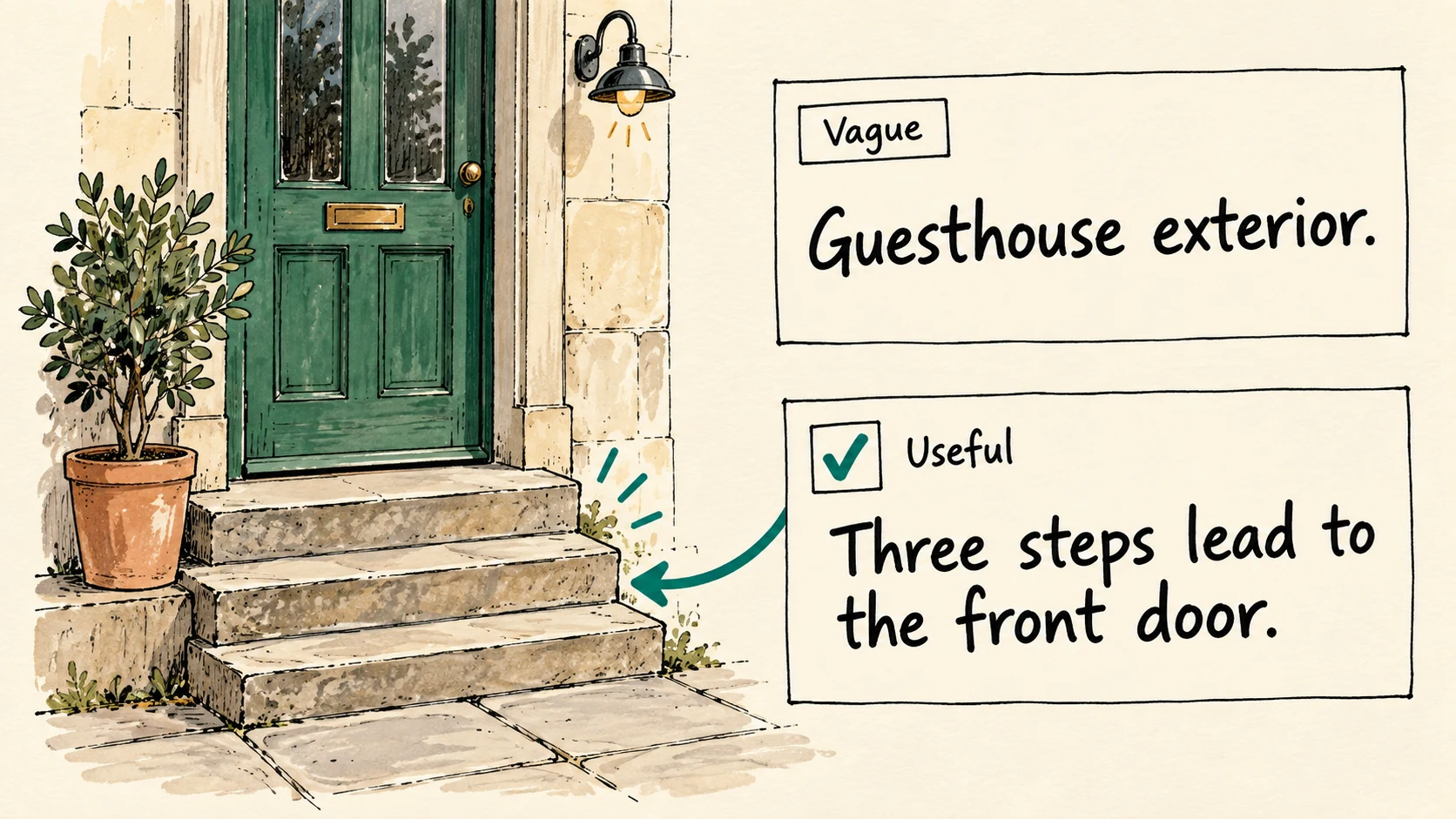
A booking page labels its entrance photo "Guesthouse exterior." That is accurate. But the photo shows three steps before the front door, and the booking description says nothing about them. A visitor deciding whether they could get inside needs that detail.
This is the editorial work behind good alt text: choosing which information the reader would lose without the picture. The booking, shopping and reporting scenarios below are fictional worked examples.
What is alt text?
Alt text is a text alternative for an image. In HTML, it usually lives in the alt attribute of an <img> element. Screen readers use it to convey the image's meaning; browsers also use it when the image cannot be displayed.
For that booking page, where the entrance photo shows a detail absent from the surrounding text:
<img
  src="guesthouse-entrance.jpg"
  alt="Three steps lead from the pavement to the guesthouse's front door."
>
The description covers the visible entrance. Put verified access information, including any alternative entrance, in the booking details too, where everyone can find it.
WCAG 2.2, criterion 1.1.1 requires text alternatives that serve an equivalent purpose, with exceptions including decoration. Filling every alt field with words is not the goal. Someone who cannot see the image should still be able to understand the content and use the page.
How to write alt text that fits the page
Establish the image's job. Is it showing useful information, naming a link or button, or adding decoration? For mixed cases, follow the W3C alt decision tree.
Read the surrounding content. Note what the heading, caption and body already explain. Then identify what the image adds. A caption naming a product does not necessarily describe the feature shown in its close-up.
Write the missing information. For an informative image, start with the subject and relevant detail. For an image used as a control, explain the action or destination. Put lengthy explanations in the page itself.
Edit in context. Finish this sentence: "This image helps the reader ___." Read the alt text in context, cutting repetition and checking that it serves that purpose. If the image helps a shopper inspect a fastening but the description only names the bag's color, it needs another edit.
Usually, a short phrase or sentence does the job. Skip introductions such as "image of" unless the medium matters: identifying a painting or an X-ray can be relevant. W3C's writing tips recommend concise alternatives and putting the most useful information first.
Alt text examples: the same photo in different places
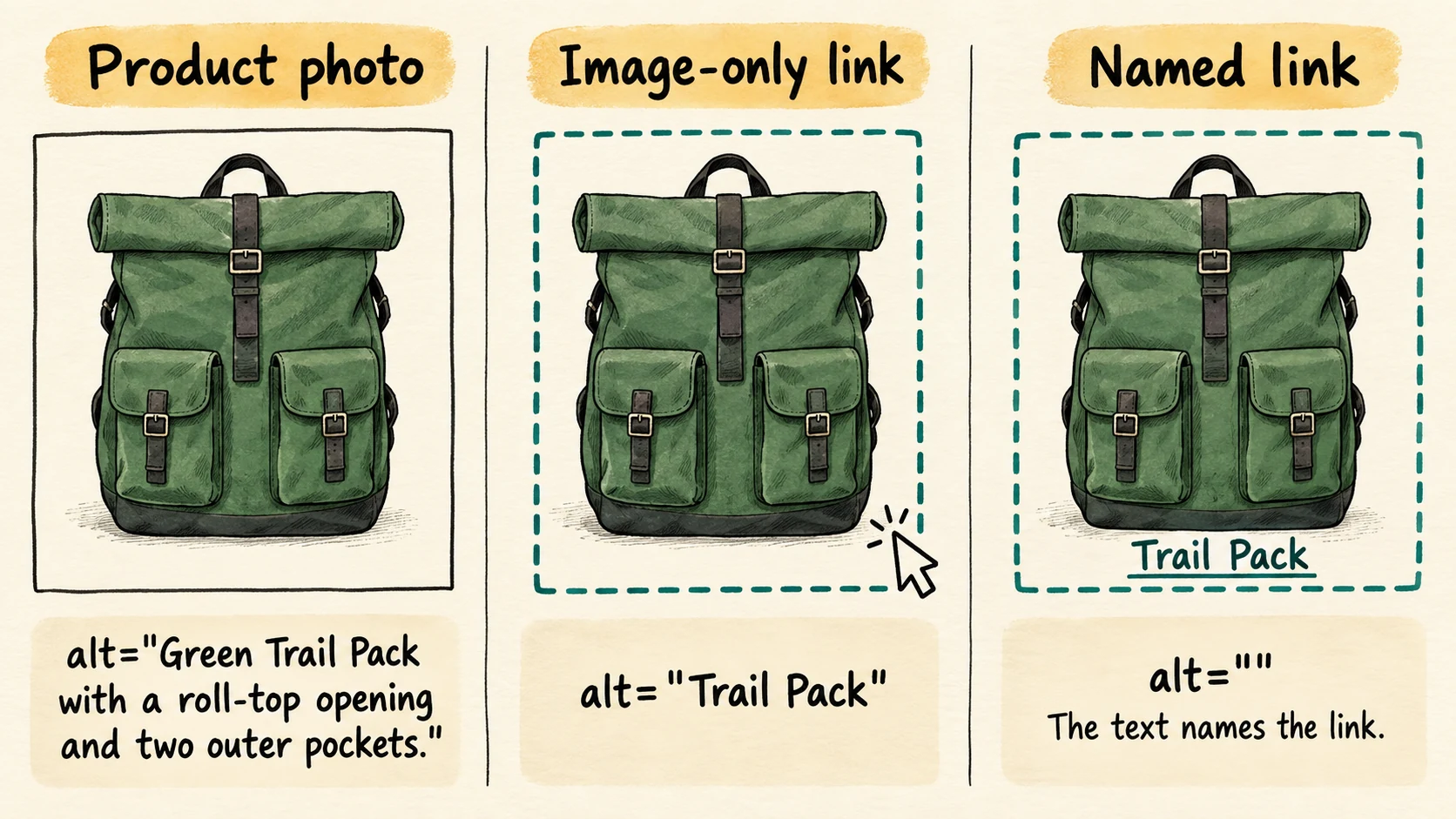
Imagine a photo of a green backpack with a roll-top opening and two outside pockets. The illustration below shows how its text alternative changes with the page.
On a product detail page
The image helps a shopper inspect the product. Describe visible features that matter to that decision:
<img
  src="trail-pack-front.jpg"
  alt="Green Trail Pack with a roll-top opening and two outer pockets."
>
For a gallery, give each useful view its own description: "Back of the Trail Pack showing padded shoulder straps" explains what a front view does not. Avoid repeating the same alt text on all six photos.
Do not add specifications you cannot establish from the image or verified product information. A green fabric does not tell you whether the bag is waterproof. W3C's guidance on informative images ties the description to the meaning the author wants the image to convey.
As an image-only link to the product
If the photo is the link's only content, its alt text provides the link's name. Tell the shopper where it leads:
<a href="/products/trail-pack">
  <img src="trail-pack-front.jpg" alt="Trail Pack">
</a>
"Green bag on a white background" would describe the picture while leaving the destination unclear. This is the distinction in W3C's functional images guidance.
Inside a link that already has a product name
When the image only repeats the identity given by visible text inside the same link, an empty alt attribute avoids naming the product twice:
<a href="/products/trail-pack">
  <img src="trail-pack-front.jpg" alt="">
  <span>Trail Pack</span>
</a>
If the thumbnail communicates a specific variant or another essential detail, include that information in the link's text or image alternative. Text in a separate neighboring link does not automatically name an image-only link.
When should an image have empty alt text?
Use alt="" when an image adds no information beyond the surrounding content and has no independent function. An ornamental divider is a straightforward case. A stock photo used only to set the mood may also be decorative; a photo documenting an event usually has information to convey.
<img src="leaf-divider.svg" alt="">Empty and missing are different. Omitting the attribute leaves the browser and assistive technology without an explicit alternative. Some screen readers then announce a filename. An empty attribute tells them to skip the decorative image. W3C explains this distinction.
In a CMS, use its decorative-image setting if it has one, then inspect the rendered page to confirm it produces alt="". Do not enter the word "decorative," a filename or a space into the field.
Take particular care with clickable images. An empty alt attribute on the only content of an otherwise unnamed link or button removes the information needed to use it. The product-card example above works because the same link contains a meaningful text label.
SVG icons inside buttons
An SVG file loaded through <img> uses alt just like a photo. An inline <svg> uses different markup. For an icon-only button, give the button a name that describes its action and hide the redundant icon from assistive technology:
<button type="button" aria-label="Close image preview">
  <svg
    aria-hidden="true" focusable="false"
    width="24" height="24" viewBox="0 0 24 24"
    fill="none" stroke="currentColor" stroke-width="2"
  >
    <path d="M7 7L17 17M17 7L7 17" />
  </svg>
</button>
The button's name is "Close image preview." Describing the icon as "two diagonal lines" would leave the action unclear. W3C's button guidance explains how text or an ARIA label supplies the name.
Keep aria-hidden="true" on the decorative SVG, never on the button itself: it removes the element from the accessibility tree. If the button already has a clear visible text label, use that text as its name and leave off the extra aria-label.
Alt text for charts, screenshots and images of text
Charts need the information behind the picture
A chart often needs a short alternative plus a longer explanation. Identify it in the alt text and point readers to the accessible detail nearby:
<img
  src="checkout-errors.png"
  alt="Bar chart of checkout errors by form field. Data and analysis follow."
>
The page would then provide a properly headed HTML data table and explain the relevant pattern, such as the delivery-date field accounting for the most errors. The actual values belong in that table. A paragraph should also explain any important grouping, comparison or trend needed to understand the chart.
Do not stop at "bar chart," or cram the entire dataset into one alt attribute. W3C's complex images guidance describes using short and long alternatives together.
Screenshots should support written instructions
Suppose a screenshot helps someone find an export control. A useful alternative is "Reports page with Export CSV in the upper-right corner." Write the actual instruction in the article too: "Open Reports, then select Export CSV."
If the point is an error, include its relevant wording: "Password field showing the error: Use at least 12 characters." There is no benefit in transcribing every navigation item around it.
For a promotional graphic containing essential words, make those words available as text. If they are absent elsewhere, the alternative needs to include them. Prefer real HTML text for content you control; W3C's images-of-text guidance explains why text baked into an image is harder to adapt.
Can AI write good alt text?
Yes. AI can produce useful drafts, but each draft needs checking against the image and page. Give the AI what an editor would need: the image, the reason for including it, nearby copy and any link destination. Asking only "describe this image" leaves it to guess what matters to your reader.
For the product example, you could start with this prompt and attach the actual image:
Draft alt text for this image on a product detail page.
Purpose: help a shopper understand the outside storage.
Nearby text: "Trail Pack" and the price.
The image is not a link.
Describe the relevant visible features concisely.
Do not infer materials, capacity or weather resistance.
Flag any uncertain details separately from the draft.
A worked edit of a hypothetical AI draft
Suppose the draft for our front-view product photo reads: "Green waterproof hiking backpack with two insulated bottle pockets, perfect for weekend adventures."
The photo in our example shows a roll-top opening and two outside pockets. Neither the image nor the supplied product information establishes waterproofing or insulation. We would edit the draft to: "Green Trail Pack with a roll-top opening and two outer pockets."
That edit removes two unsupported specifications and the sales language. It also adds the opening the draft missed and the product name supplied by the page. Shortening the sentence without checking its claims would have left the more serious problem intact.
Use the same care with charts and screenshots: compare labels, values and error messages against the source, character by character where accuracy matters.
Save the approved wording in your content so editors can maintain it. For an image that is likely to be reused, keep a brief editorial note about its purpose, such as "shows outside storage." The note is for the next editor; it does not belong in the alt attribute.
If an overlay supplies descriptions automatically, check them on the real page using the same process. Our guide to accessibility overlays and their limits explains why adding an attribute is only part of a useful repair.
Does alt text help SEO?
Yes. Google uses alt text alongside the page's content and image analysis to understand an image. Its image SEO guidance recommends useful descriptions that fit the context and warns against keyword stuffing.
Use a product name or relevant term where it helps identify the subject. "Green Trail Pack with a roll-top opening" does that naturally. "Best hiking backpack cheap backpack waterproof backpack sale" gives the reader little usable information and introduces an unsupported claim.
Keep decorative images empty even if your SEO plugin asks for a keyword in every image. A plugin's checklist does not change the image's purpose. Alt text supports discoverability; it cannot promise a search position or compensate for a page that fails to answer the reader's question.
How to check alt text before publishing
Review alt text when you move an image, even if the file itself has not changed. Our backpack's front view needed a feature description on the product page, a destination in an image-only link and an empty alternative inside the text-labeled card. One description saved in a shared media library cannot handle all three placements correctly.
- Inspect the output. Confirm informative images have the intended
altvalue and decorative images havealt="". Check that a filename or default description has not replaced your edit. - Check linked images in context. The link or button should have an understandable name. Verify mobile layouts too, especially if they hide a visible label.
- Read through the page. Use a screen reader to check the sequence of text, images and links. Listen for unnecessary repetition, missing information and controls whose purpose is unclear.
- Use a scan to find omissions. Then review the descriptions themselves. An attribute containing "photo" can exist without doing its job.
Our scans help find detectable issues; they do not settle whether a description conveys the right meaning. W3C's evaluation tools guidance makes the need for human checks explicit. For a large site, start with images involved in purchases, bookings and instructions, then work through less critical content.
Frequently asked questions about alt text
Is there a 125-character limit for alt text?
WCAG does not set a universal 125-character limit. Aim for a concise phrase or sentence that serves the image's purpose. If a chart needs several paragraphs, put that explanation in the page and use a short alternative to identify the chart and direct readers to it. A CMS character limit is a separate product constraint.
Does a caption replace alt text?
Only when it already provides everything the image contributes and the image has no separate function. A caption such as "Our new backpack" does not explain the shoulder-strap adjustment shown in a close-up. Describe that useful detail in the alt text, or add it to the visible explanation and reassess whether an empty alternative is appropriate.
What alt text should a logo have?
For a standalone informative logo, use the organization's name. If the logo is the only content of a home link, "AccessiLume home" identifies both the organization and destination. If the same link already contains equivalent visible text, the logo can have alt="". Describing its colors and geometry is usually unnecessary unless the page is discussing the logo's design.
Should every product image have the same alt text?
No. Different views need descriptions of the useful details they show. A front view, a close-up of a fastening and a size comparison help a shopper answer different questions. Repeating the product name alone across the gallery loses those distinctions. Review each image where it appears, including whether it is itself a link or control.
See which of these failures your own page has
One URL, one scan, and the exact element plus the rule it breaks — no signup needed for the first report.
Run a free scanAccessiLume cites primary standards and published research. Guidance checked against W3C WAI and Google Search Central.
- W3C. WCAG 2.2, Success Criterion 1.1.1: Non-text Content. Level A.
- W3C Web Accessibility Initiative. An alt Decision Tree.
- W3C Web Accessibility Initiative. Informative Images.
- W3C Web Accessibility Initiative. Decorative Images.
- W3C Web Accessibility Initiative. Functional Images.
- W3C Web Accessibility Initiative. Button Pattern. ARIA Authoring Practices Guide.
- MDN Web Docs. ARIA: aria-hidden attribute.
- W3C Web Accessibility Initiative. Complex Images.
- W3C Web Accessibility Initiative. Images of Text.
- W3C Web Accessibility Initiative. Tips and Tricks for Text Alternatives.
- Google Search Central. Google image SEO best practices.
- W3C Web Accessibility Initiative. Evaluation Tools Overview.